How to Connect BoothIQ to Claude Code and Claude Desktop
Prerequisites
You need a Claude Pro or Max plan to use custom connectors. You also need a BoothIQ account.
Connect with Claude Desktop or Claude.ai
Both use the Connectors feature.
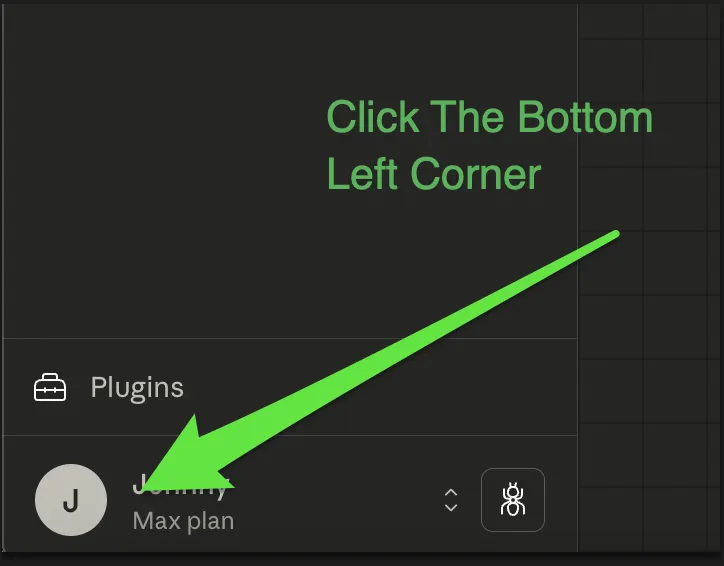
Step 1: Click your profile icon
Open Claude Desktop or Claude.ai. Click your profile icon in the bottom left corner.
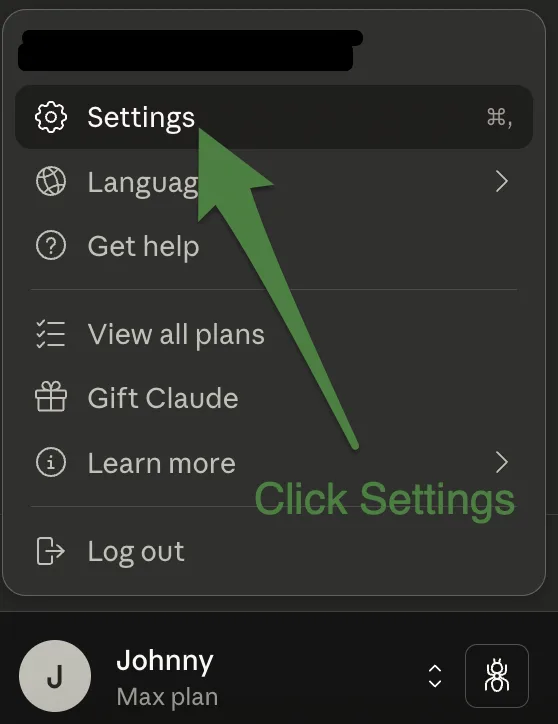
Step 2: Click Settings
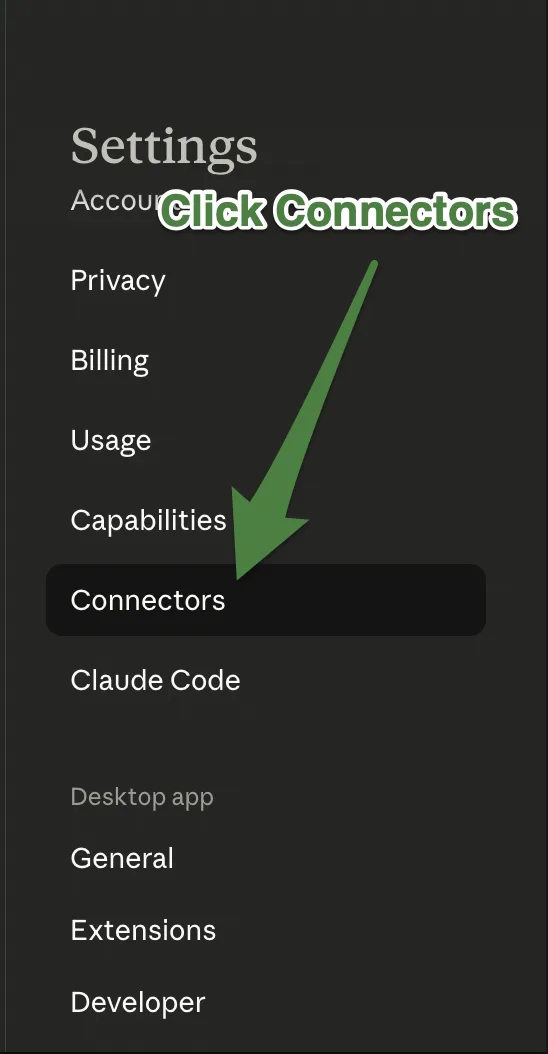
Step 3: Click Connectors
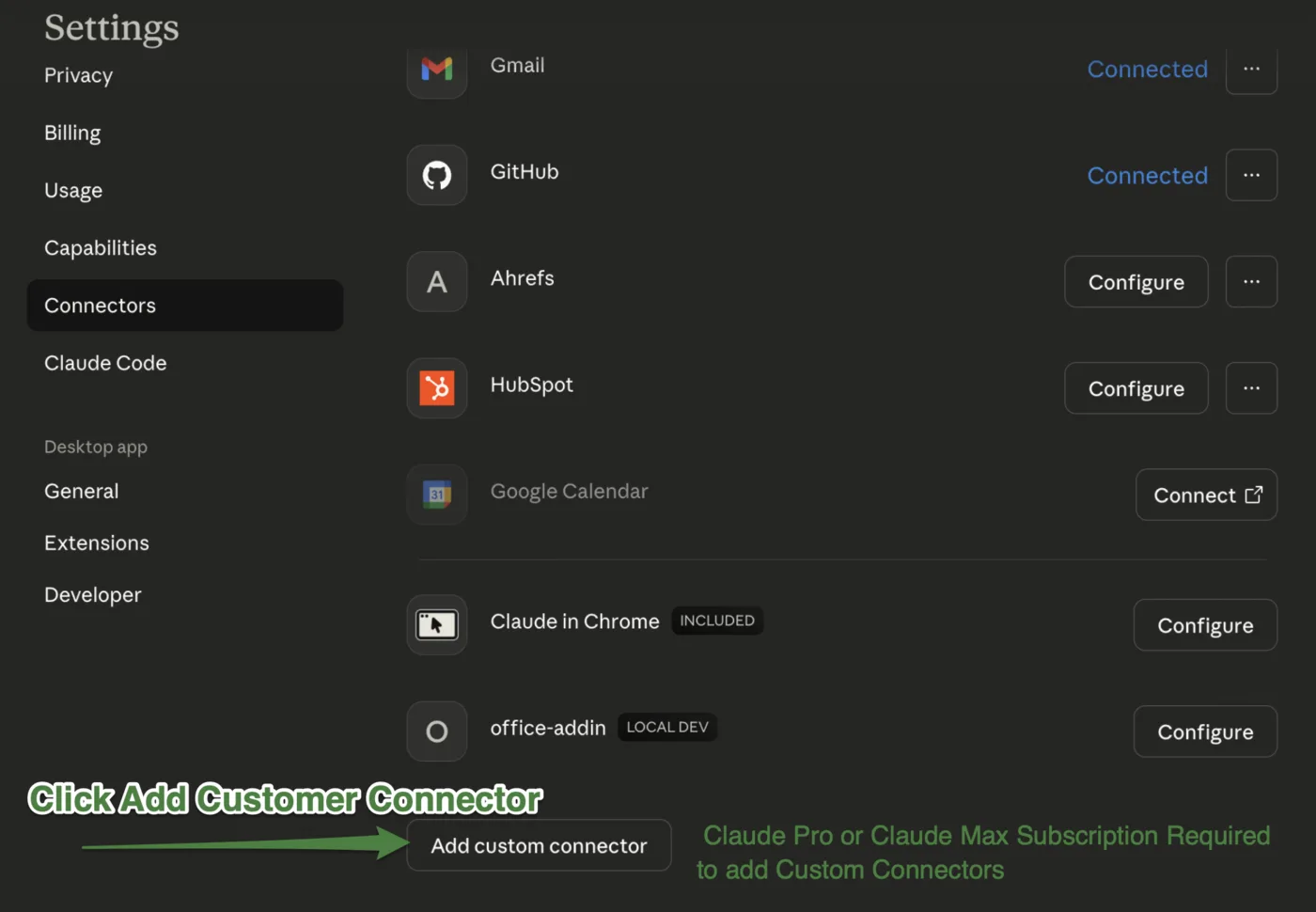
Step 4: Click Add Custom Connector
Scroll to the bottom of the connectors list and click “Add custom connector.”
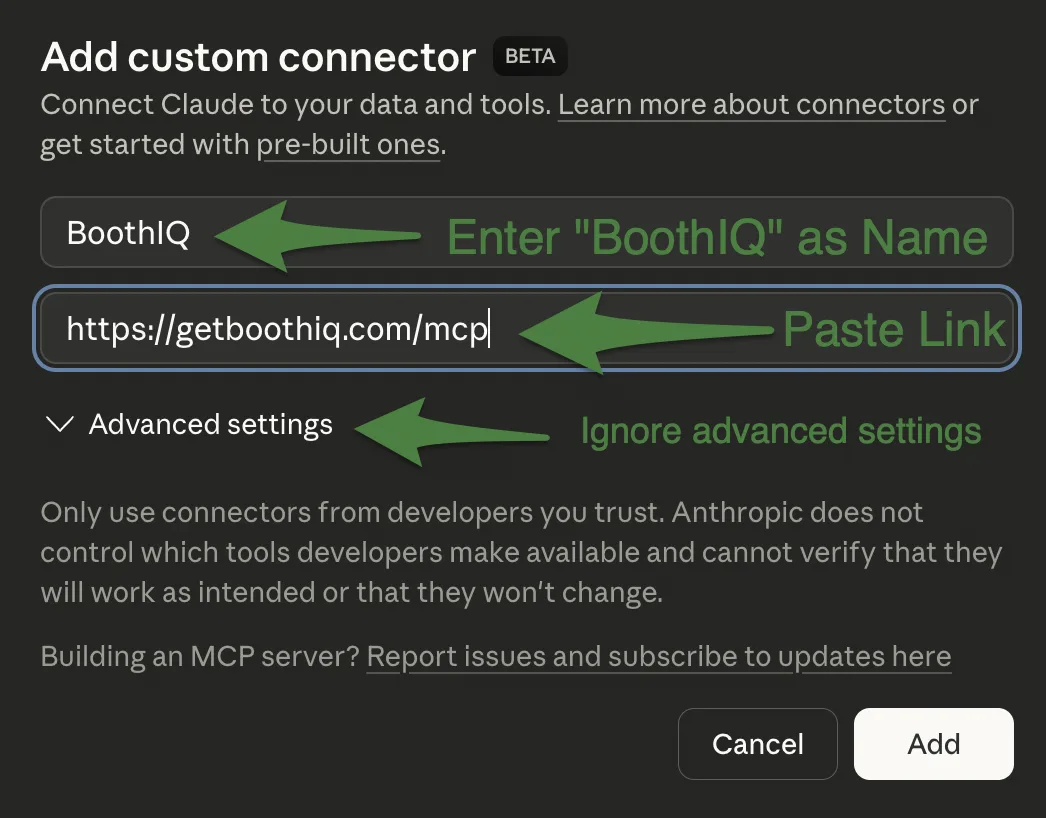
Step 5: Add BoothIQ
Enter the connector name and URL:
- Name: BoothIQ
- URL: https://getboothiq.com/mcp (click to copy)
Ignore Advanced Settings. Click “Add.”
Step 6: Click Connect
BoothIQ will appear in your list of connectors. Click “Connect.”

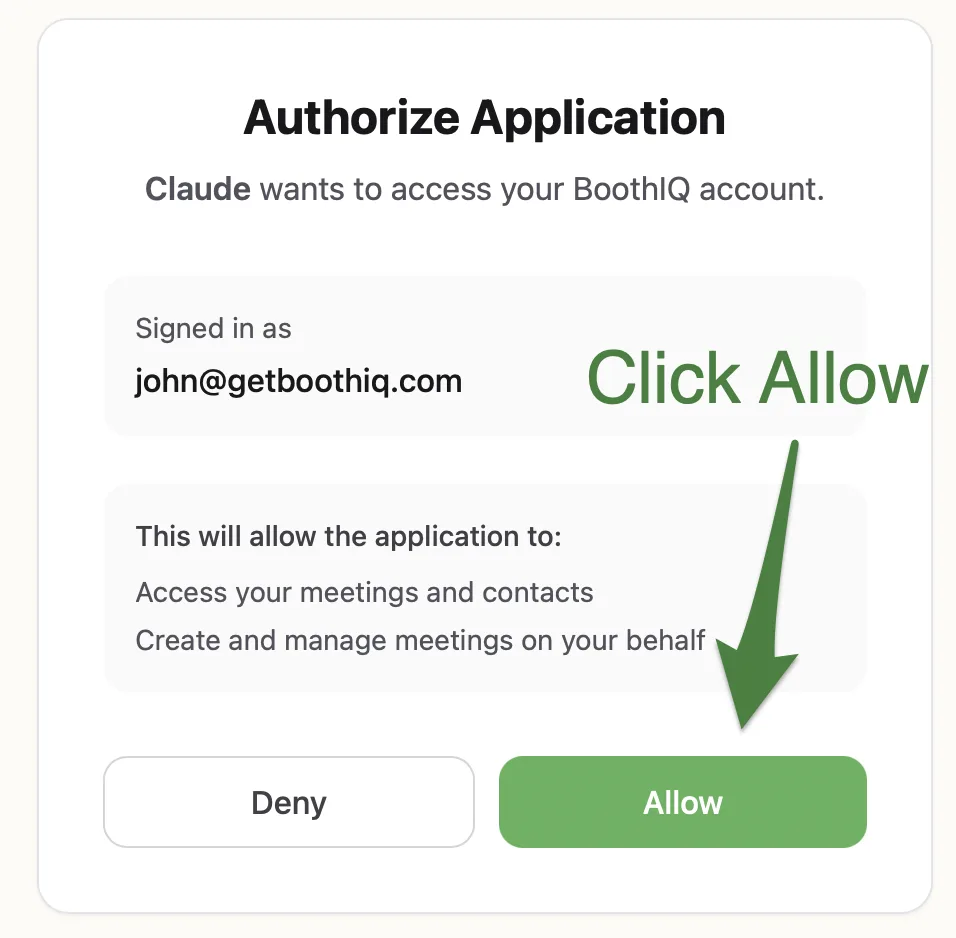
Step 7: Allow access
You’ll be redirected to sign in with your BoothIQ account. Click “Allow” to approve the connection.
Step 8: Done
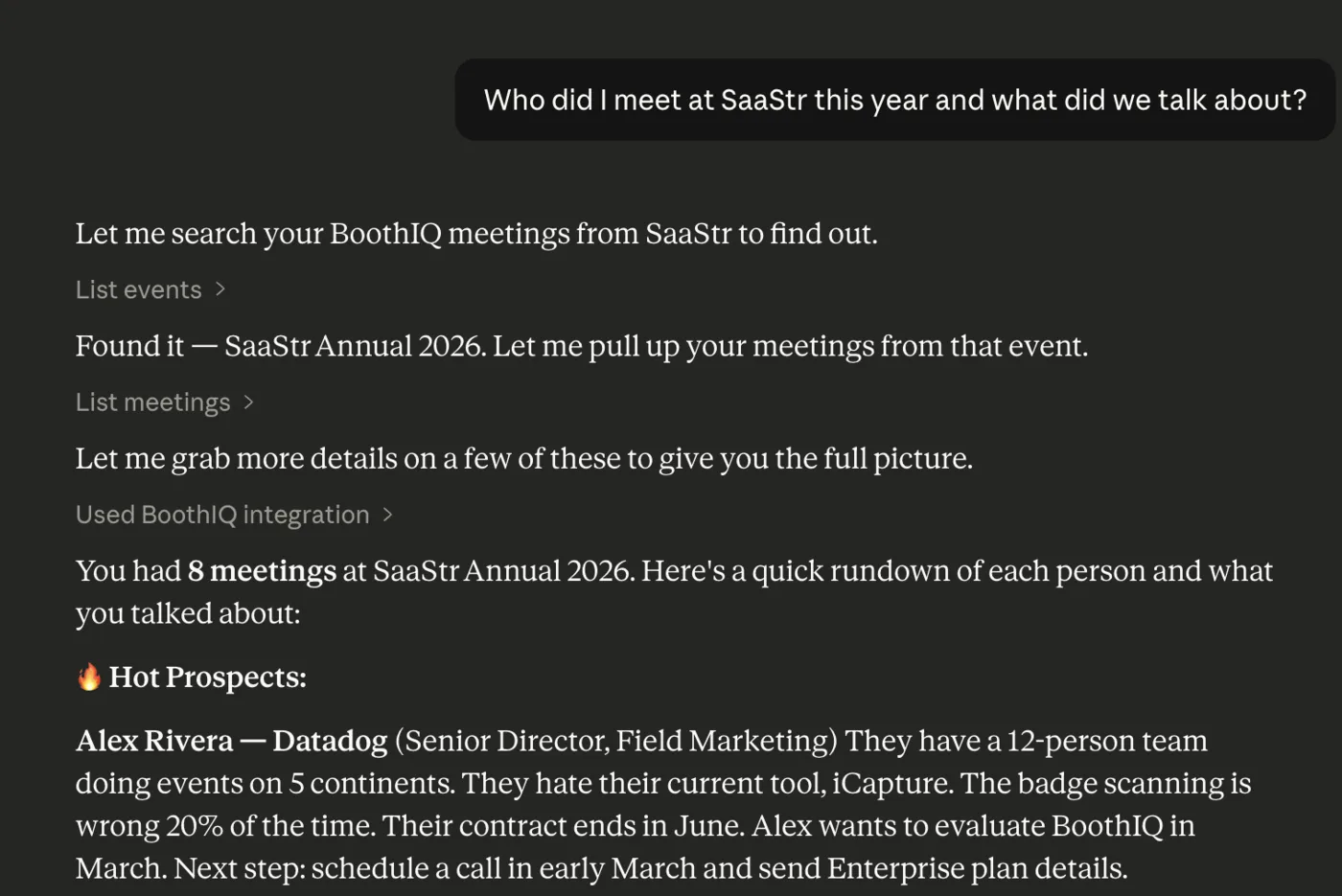
If you see “Configure” next to BoothIQ, it worked.

Try asking a question about your events.
New to BoothIQ? See how to capture your first leads so Claude has something to work with.
Connect with Claude Code
Claude Code is a command line tool. Setup is one command.
Step 1: Add the MCP Server
Run this in your terminal:
claude mcp add --transport http boothiq https://getboothiq.com/mcpClaude Code will open your browser to sign in with your BoothIQ account. Approve the connection, and you’re set.
Use --scope user if you want BoothIQ available across all your projects, not just the current one.
Step 2: Verify the Connection
Start Claude Code and ask it something about your events:
> What meetings do I have in BoothIQ?If the connection is working, Claude will call the BoothIQ tools and show your meeting data.
What You Can Do With It
Before this, event data lived in spreadsheets and scattered notes. You could look things up, but you couldn’t ask questions. Now you can.
Know who talked about what
- “What did I talk about with Sarah Chen at CES?”
- “Show me the transcript from my meeting with the Stripe team.”
- “Pull up the meeting where we discussed enterprise pricing.”
Know who was really interested (and who wasn’t)
- “Which contacts asked about pricing or next steps?”
- “Who did we talk to for more than 10 minutes?”
- “Were there any meetings with no follow-up actions?”
Know what to do next
- “What are the next steps from yesterday’s booth conversations?”
- “Draft a follow-up email to the contacts I met today. Reference what we talked about.”
- “Write a summary email for my manager with the top 5 leads from this event.”
For more follow-up strategies, see our guide to trade show follow-up.
Know how the event went
- “How many people did I talk to at this event?”
- “Which team member had the most meetings?”
- “Which events had the most meetings this quarter?”
- “Find all meetings where the next step was scheduling a demo.”
BoothIQ is a universal lead capture app that integrates with your calendar and CRM, making follow-up and sales a breeze.
How It Works
Claude reads your BoothIQ data through MCP, an open standard by Anthropic that lets AI tools talk to external apps. Each time you ask a question, Claude calls BoothIQ, gets the answer, and shows you the result. Your data stays in BoothIQ. Claude just reads it when you ask.
Your data stays safe. You sign in once with your BoothIQ account and Claude handles the rest. No API keys to manage.
FAQ
Is my data safe?
Yes. Claude reads your data through an encrypted OAuth connection when you ask a question. It doesn’t store your event data. Only your account’s data is accessible, and you can revoke access at any time from your BoothIQ settings.
Does this work on Claude’s free plan?
No. Custom connectors require a Claude Pro or Max plan. Check Anthropic’s pricing for the latest details.
What if I have a lot of meetings?
The list_meetings tool supports pagination. Claude can page through your meetings 20 at a time (up to 100 per page). You can also filter by event to narrow down the results.
Do I need to be technical to set this up?
No. For Claude Desktop or Claude.ai, you paste a URL into the Connectors settings and sign in. For Claude Code, you run one terminal command and sign in. No config files to edit, no API keys to find.
Can my whole team use this?
Yes. Each team member connects their own BoothIQ account. They add the connector, sign in with their credentials, and Claude reads their data.
How do I disconnect?
In Claude Desktop or Claude.ai, go to Settings, find BoothIQ under Connectors, and click “Disconnect.” In Claude Code, run claude mcp remove boothiq.
References
- Anthropic MCP Documentation — Official MCP specification and protocol details.
- Getting Started with Custom Connectors — Anthropic’s guide to adding custom connectors in Claude Desktop and Claude.ai.
- Claude Code MCP Guide — Anthropic’s guide to adding MCP servers in Claude Code.
Ready to Talk to Your Event Data?
Stop scrolling through spreadsheets after every event. Connect BoothIQ to Claude and ask questions about your leads, conversations, and next steps in plain English. Try BoothIQ free to get started.